その他の色ツール
彩度
画像の彩度を上げるツールです。特定の色相かグローバルな色相のどちらかを選んで強調できます。彩度の強さはスライダー 量 で調整します。
The Background factor slider sets the factor multiplied by the background value. Lower is the value, stronger is the saturation effect. While a high value will preserve the background.
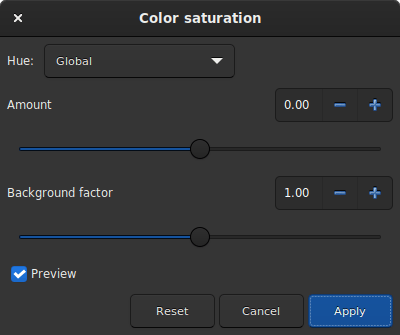
彩度ダイアログウインドウ。
Sirilコマンドライン
satu amount [background_factor [hue_range_index]]
緑ノイズを取り除く
Because green is not naturally present in deep sky images (except for comets and some planetary nebulae), if the image has already been calibrated, its colors are well balanced and the image is free of any gradient, we can assume that if the image contains green, it belongs to the noise. It is then interesting to find a method to remove this dominant green. This is exactly what the Remove Green Noise tool proposes, which is derived from the Subtractive Color Noise Reduction tool, but for green only.
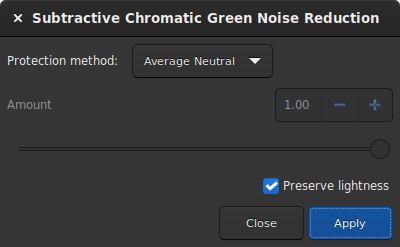
Remove Green Noise dialog window.
警告
This tool is not intended for direct use on a typical green image from a stack where the background sky level has not been equalized. Its use in such conditions would destroy the image's chrominance.
警告
This tool is designed to be used on non-linear images, as it operates in a non-linear color space. Make sure the histogram has been stretched before using this tool to avoid incorrect processing results.
This tool has 3 settings. The protection method, the amount (called \(a\) in the following section), and a Preserve lightness button. The following methods present the different existing ways to remove the green pixels by replacing them with a mix of Red and Blue. The amount is only available for methods with mask protection. The choice of its value must be done with caution in order to minimize the rise of the magenta cast in the sky background. Do not hesitate to use the Undo and Redo buttons in order to fine-tune the value.
Protection method
Maximum Mask Protection
Additive Mask Protection
Average Neutral Protection (default method)
Maximum Neutral Protection
Finally, the Preserve lightness button preserves the original CIE L* component in the processed image, in order to only process chromatic component, it is highly recommended to let this option checked.
Sirilコマンドライン
rmgreen [-nopreserve] [type] [amount]
カラー反転
カラー反転とは、ピクセルの値を \((L - 1)`(ここで :math:`L\) はピクセルの取り得る最大値)から引き、その結果で置き換えることを指します。
カラー反転 ツールは、ツールバーのカラー反転表示  とは異なります。実際、変換は視覚的なものだけでなく、実際にピクセル値に適用されます。画像を保存するとネガとして保存されます。
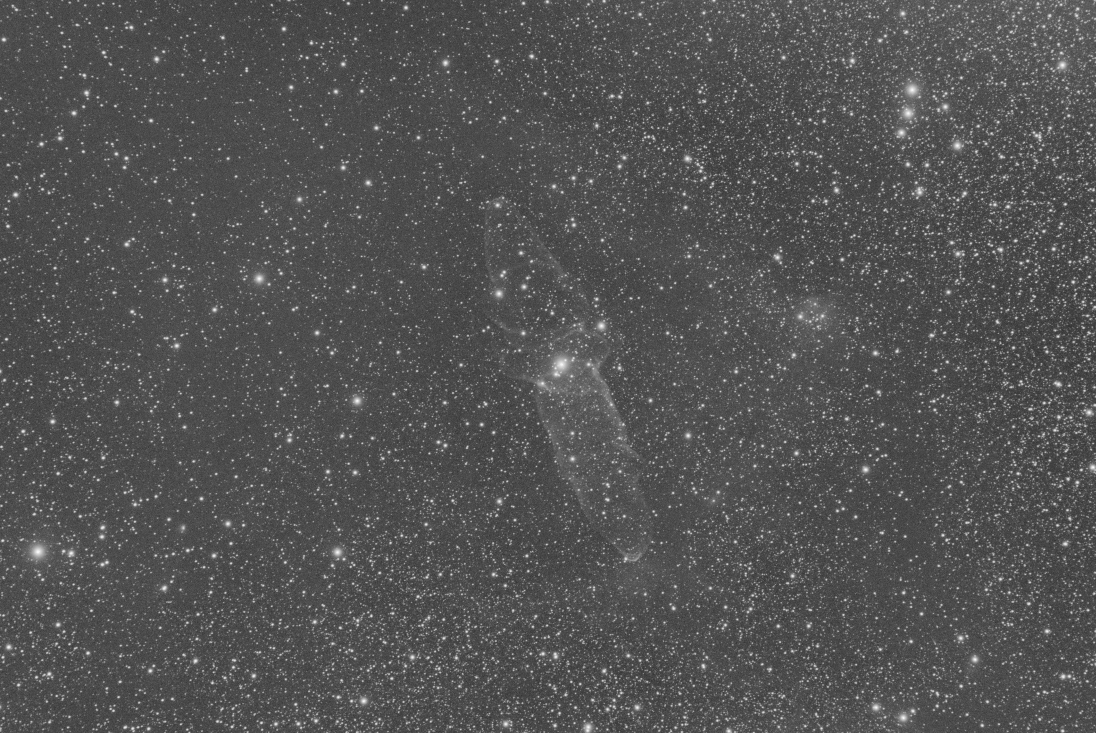
Original image with weak signal (Image Cyril Richard).
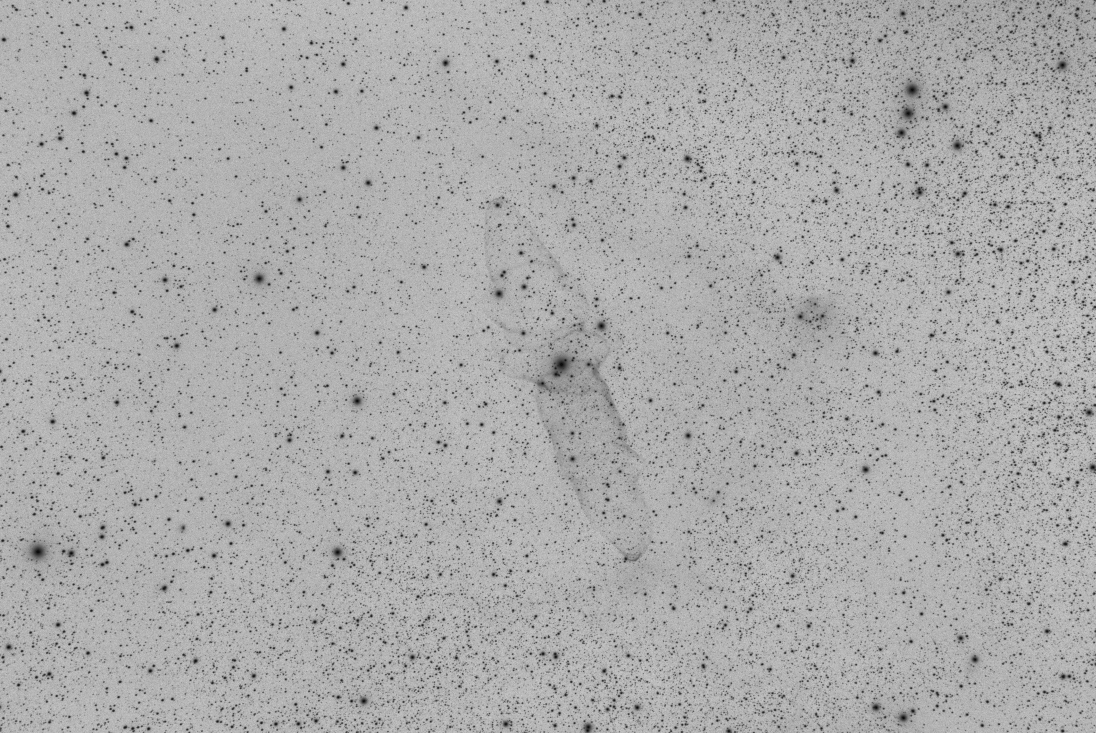
Negative image where the signal is more visible (Image Cyril Richard).
Tip
A common use of the negative transformation tool is to remove the magenta cast from SHO images. In this case one need to apply Negative transformation, then Remove Green Noise, then Negative transformation again.
Sirilコマンドライン
neg