Microsoft Windowsでのインストール
インストーラーを使ったインストール
Sirilをインストールするには、付属のインストーラーの使用をお勧めします。このインストーラーが手順を順を追って案内してくれます。
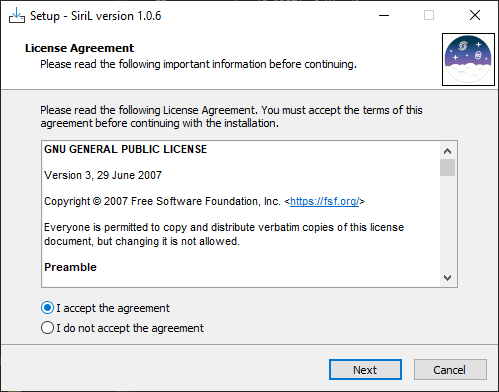
インストーラーの最初の画面、続行するには利用規約に同意する必要がある。
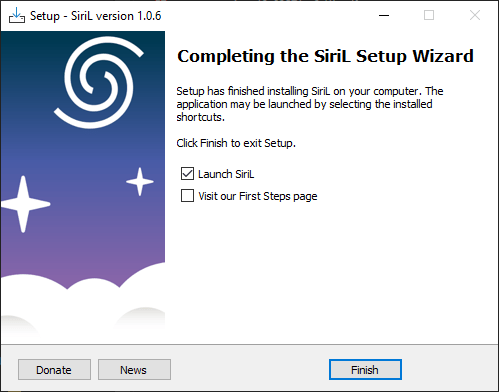
インストーラーの最後の画面。インストール直後にSirilを起動したり、最初の一歩を説明するチュートリアルを開いたりするか選択できる。
Sirilのセットアップウィザードが、必要なファイルをすべて適切な場所にインストールします。最後に、デスクトップにショートカットを作成するかどうかを選択できます。
注釈
SirilはC:\Program Files\Sirilにインストールされます。このフォルダへのインストール権限がない場合は、代わりにポータブル版をご利用ください(ポータブルバイナリのインストール を参照)。
ポータブルバイナリのインストール
コンピュータに各種ファイルをインストールせずにSirilを使用したい場合(例えば、そのマシンで管理者権限を持っていない場合など)、ポータブル版の使用をお勧めします。これはzipファイル形式で提供されており、任意の場所に展開した後、bin フォルダに移動して siril.exe を実行するだけです。また、デスクトップにショートカットを作成しておくと、アプリケーションを簡単に起動できます。
警告
ご注意ください。いかなる場合でも、exe ファイルやその他のファイルを移動しないでください。移動すると、Sirilが起動しなくなります。
Msys2を使用したWindows環境での構築
この手順は、UCRT64ツールチェーンを使用してMSYS2上でWindows向けにコンパイルするためのものです。MSYS2には64ビット版の Windows 10以降が必要であり、FATファイルシステムでは動作しません。
注釈
Siril 1.4.2以降、Windowsでのビルド環境としてサポートされるのはUCRT64のみとなります。これまで代替環境としてサポートされていたMinGW64環境は、2025年3月15日にMSYS2プロジェクトによって非推奨となりました。Sirilの依存パッケージのうち、すでにいくつかがMinGW64のパッケージインデックスから削除されており、今後もさらに削除される見込みです。今後のSirilのすべてのリリースは、UCRT64のみを使用してビルドされることになります。
Sirilのウェブサイトで提供されているインストーラーやポータブルバイナリを使用している場合、この変更はユーザーには影響しません。ソースからSirilをビルドする場合は、UCRT64環境を使用することが必要です。
UCRT64を使用すると、1つのシーケンスで処理できるファイル数も8192に増加します。
Download MSYS2 64bit, a software distribution and building platform for Windows, and run the x86_64 installer for 64-bit. When asked, specify the directory where MSYS2 will be installed.
Run MSYS2 directly from the installer, or later MSYS2 MinGW UCRT x64 from the Start menu or a shortcut.
警告
Make sure to launch the UCRT x64 shell (the icon at the top of the terminal window should be yellow).
First, update the package database and core system packages by typing (for more information about pacman, see this page):
pacman -Syu
依存関係のインストール
To install the dependencies, enter the following command:
curl -s -o siril-deps.sh https://gitlab.com/free-astro/siril/-/raw/master/build/windows/native-gitlab-ci/siril-deps.sh
bash siril-deps.sh
注釈
The link above points to the latest version of the dependencies installation script. We have had a tendency in the past not to remove any dependencies (rather to add more), so even if you want to build the stable branch, you should be okay using the latest dependencies script. In case a dependency is missing for a specific version, you can always check the script from the corresponding tag in the GitLab repository.
ソースから構築する
ソースコードはGitLabでホストされています。以下のコマンドでダウンロードしてください:
git clone https://gitlab.com/free-astro/siril.git
cd siril
git submodule update --init
Generate the build system and compile the code:
meson setup _build --buildtype release
ninja -C _build install
To launch your build of Siril, open an MSYS2 UCRT64 shell and type:
siril
You can also create a shortcut to siril.exe, located by default at C:\msys2\ucrt64\bin\.
To update your version, open an MSYS2 UCRT64 shell, then:
pacman -Syu
cd siril
git pull --recurse-submodules
meson setup _build --reconfigure
ninja -C _build && ninja -C _build install
If git pull does not show any changes, there is no need to rebuild. Otherwise, the above commands will update your build. Then launch Siril with:
siril
警告
Starting with Siril 1.3.6, you will need to have Python installed on your system if you build from sources. The first time you launch a self-built Siril, you must do so from a native Windows environment, not from the MSYS2 shell, in order for Siril to detect the Windows Python installation rather than the MSYS2 one (a notification will appear in the console if this step is skipped, and the sirilpy module will not be initialized). This is a one-time requirement. Once the virtual environment has been set up, you can start Siril from the MSYS2 shell as usual.
To launch Siril in a Windows environment, either open a Windows terminal and run
C:\msys2\ucrt64\bin\siril.exe, or locate this file in Explorer and double-click it.