Installation unter Microsoft Windows
Installation mit dem Installationsprogramm
Es wird empfohlen, Siril mit dem mitgelieferten Installationsprogramm zu installieren, das Sie Schritt für Schritt anleitet.
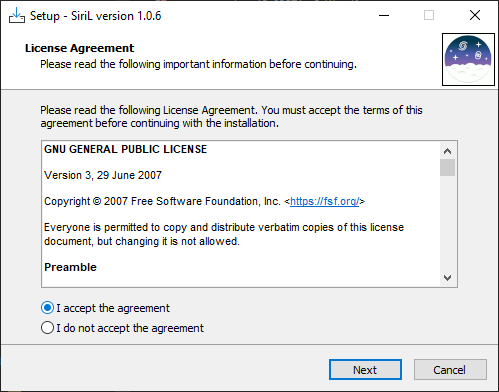
Auf dem ersten Bildschirm des Installationsprogramms müssen Sie die Vereinbarung akzeptieren, um fortzufahren.
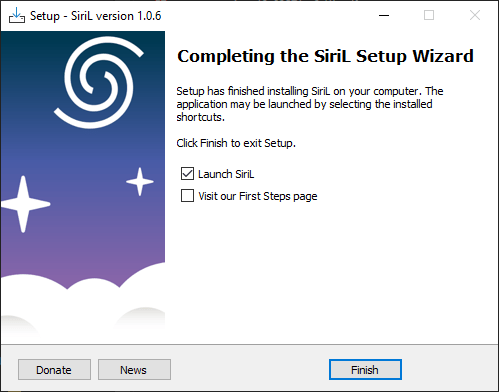
Letzter Bildschirm des Installationsprogramms. Sie können wählen, ob Sie Siril direkt nach der Installation starten und das Tutorial öffnen möchten, das die ersten Schritte erklärt.
Der Siril-Setup-Assistent installiert alle erforderlichen Dateien an der richtigen Stelle und am Ende haben Sie die Wahl, ob Sie eine Verknüpfung auf dem Desktop erstellen möchten oder nicht.
Bemerkung
Siril wird in C:\Programme\Siril installiert. Wenn Sie nicht die Rechte haben, in diesen Ordner zu installieren, verwenden Sie stattdessen eine portable Version (siehe Installation der portablen Binärdatei.)
Installation der portablen Binärdatei
Wenn Sie Siril verwenden möchten, ohne alle möglichen Dateien auf Ihrem Computer zu installieren (zum Beispiel, wenn Sie keine Administratorrechte auf dem Rechner haben), dann ist es empfehlenswert, die portable Version zu verwenden. Sie wird in Form einer Zip-Datei geliefert, die Sie einfach an einem Ort Ihrer Wahl entpacken und dann in den Ordner bin gehen, um siril.exe auszuführen. Sie können auch eine Verknüpfung auf Ihrem Desktop erstellen, um den Start der Anwendung zu erleichtern.
Warnung
Seien Sie vorsichtig, unter keinen Umständen sollten Sie die exe-Datei oder irgendeine andere Datei verschieben. Sonst wird Siril nicht laufen.
Kompilieren unter Windows mit Msys2
These instructions are made for compiling on Windows with MSYS2 using the UCRT64 toolchain. MSYS2 requires 64-bit Windows 10 or newer, and does not work with FAT filesystems.
Bemerkung
Starting with Siril 1.4.2, UCRT64 is the only supported build environment on Windows. The MinGW64 environment, previously supported as an alternative, has been deprecated by the MSYS2 project on March 15th, 2025. Several Siril dependencies have already been removed from the MinGW64 package index, and more are expected to follow. All future releases of Siril will be built exclusively with UCRT64.
If you are using the installer or portable binaries provided on the Siril website, this change is transparent to you. If you are building Siril from sources, you must use the UCRT64 environment.
Using UCRT64 also increases the number of files that can be handled in a sequence to 8192.
Download MSYS2 64bit, a software distribution and building platform for Windows, and run the x86_64 installer for 64-bit. When asked, specify the directory where MSYS2 will be installed.
Run MSYS2 directly from the installer, or later MSYS2 MinGW UCRT x64 from the Start menu or a shortcut.
Warnung
Make sure to launch the UCRT x64 shell (the icon at the top of the terminal window should be yellow).
First, update the package database and core system packages by typing (for more information about pacman, see this page):
pacman -Syu
Installieren von Abhängigkeiten
Um die Abhängigkeiten zu installieren, geben Sie den folgenden Befehl ein:
curl -s -o siril-deps.sh https://gitlab.com/free-astro/siril/-/raw/master/build/windows/native-gitlab-ci/siril-deps.sh
bash siril-deps.sh
Bemerkung
The link above points to the latest version of the dependencies installation script. We have had a tendency in the past not to remove any dependencies (rather to add more), so even if you want to build the stable branch, you should be okay using the latest dependencies script. In case a dependency is missing for a specific version, you can always check the script from the corresponding tag in the GitLab repository.
Erstellen aus den Quelldateien
The source code is hosted on GitLab. Download it with the following command:
git clone https://gitlab.com/free-astro/siril.git
cd siril
git submodule update --init
Generate the build system and compile the code:
meson setup _build --buildtype release -Dgtk=true
ninja -C _build install
To launch your build of Siril, open an MSYS2 UCRT64 shell and type:
siril
You can also create a shortcut to siril.exe, located by default at C:\msys2\ucrt64\bin\.
To update your version, open an MSYS2 UCRT64 shell, then:
pacman -Syu
cd siril
git pull --recurse-submodules
meson setup _build --reconfigure
ninja -C _build && ninja -C _build install
If git pull does not show any changes, there is no need to rebuild. Otherwise, the above commands will update your build. Then launch Siril with:
siril
Warnung
Starting with Siril 1.3.6, you will need to have Python installed on your system if you build from sources. The first time you launch a self-built Siril, you must do so from a native Windows environment, not from the MSYS2 shell, in order for Siril to detect the Windows Python installation rather than the MSYS2 one (a notification will appear in the console if this step is skipped, and the sirilpy module will not be initialized). This is a one-time requirement. Once the virtual environment has been set up, you can start Siril from the MSYS2 shell as usual.
To launch Siril in a Windows environment, either open a Windows terminal and run
C:\msys2\ucrt64\bin\siril.exe, or locate this file in Explorer and double-click it.