Entête FITS
Les mots-clés contenus dans l'en-tête d'un fichier FITS peuvent être affichés dans Siril. Pour ce faire, il suffit de cliquer sur .
Since version 1.3.0, it is possible to modify the value of keywords supported by Siril, either with the update_key command, or via the GUI, in the appropriate window. This window is divided into two tabs. The first, the Header Editor, lets you edit the keywords of the loaded image. When a sequence is loaded, the changes are applied to every image of the sequence (see the note below). It may vary from what the file header actually looks like, and represents more the state it will be in after saving. Keyword values are updated in real time. The second tab displays the header in text format as written in the file and as it was represented for Siril versions below 1.3.0.
Avertissement
Les mots-clés HISTORY ne sont pas affichés dans l’éditeur. Ils sont visible dans l'onglet Entête sauvgardé.
Une autre méthode pour afficher l'entête est d'utiliser la ligne de commande dumpheader. Ceci affiche le même entête que l'onglet Entête sauvegardé.
Avertissement
Comme les fichier SER contiennent très peu de mots-clés et sont différents des fichier FITS, cette commande n'est pas applicable sur ce type de séquence.
Les mots-clés, valeurs et commentaire peuvent être modifié, cependant, certain mots-clés peuvent être protégés. Pour les reconnaître facilement, les mot-clés protégé sont affiché en couleur saumon.
L'édition est très simple, il suffit de double-cliquer sur la cellule à modifier. Le premier clic sélectionne le champ, le second ouvre le mode édition. Appuyer sur la touche Entrée valide la saisie. Pour que les modifications prennent effet, n'oubliez pas d'enregistrer le fichier.
Note
When a sequence is loaded, editing a key name, value or comment applies the change to the FITS header of every image of the sequence. A confirmation is asked the first time; editing then stays enabled until the window is closed. This is the graphical equivalent of the sequpdate_key command and is not available for SER sequences.
Avertissement
Veuillez noter que Siril ne vérifie pas la validité de la valeur saisie. Il appartient à l'utilisateur de saisir une valeur valide. Une valeur incorrecte peut entraîner un comportement indésirable dans le traitement des mots-clés par Siril.
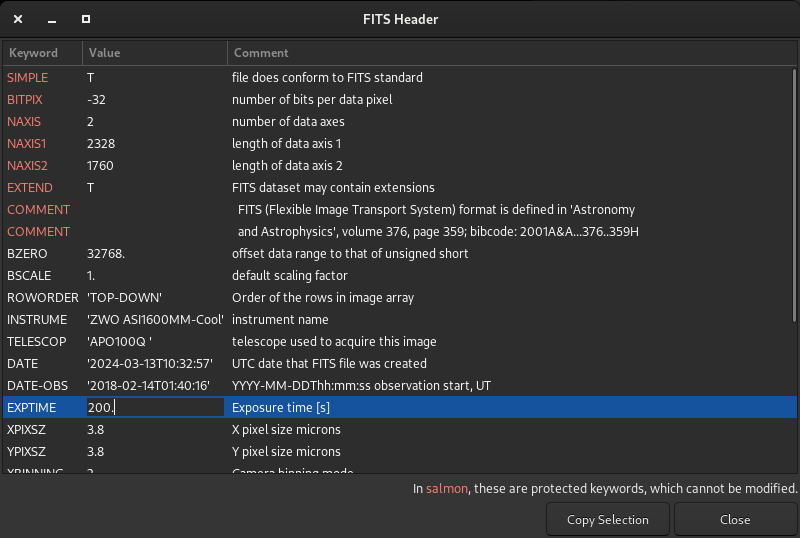
Fenêtre d'en-tête FITS lors de l'édition de la valeur d'un mot-clé.

Second onglet de la boite de dialogue de l'entête FITS.
La fenêtre contient une option sous la forme d'un bouton Copier la sélection. Il permet de copier les lignes sélectionnées dans le presse-papiers dans le format originale de l'entête FITS, et fonctionne pour les deux onglets.
Enfin, vous pouvez ajouter un nouveau mot-clé à l'aide du bouton + en bas à gauche , et en supprimer à l'aide du bouton -:
Pour ajouter un mot-clé, cliquez sur le bouton +. Une nouvelle boîte de dialogue s'ouvre, comme illustré ci-dessous. Cette fenêtre vous permet d'ajouter un nouveau mot-clé, dont le nom sera limité à 8 caractères (la convention
HIERARCHn'est pas utilisée). Vous pouvez laisser le champ Commentaire vide, si les deux autres sont remplis. Cependant, l'utilisateur peut aussi ne remplir que le champ Commentaire pour ajouter un simple commentaire à l'en-tête FITS. Enfin, si le mot-clé existe déjà, sa valeur sera mise à jour avec les informations fournies.
La fenêtre pour ajouter de nouveaux mot clé.
Pour supprimer un mot-clé, sélectionnez une ou plusieurs lignes et cliquez sur le bouton - (ou avec les touches Suppr ou Retour arrière). Les mots-clés sélectionnés seront supprimés, sauf s'ils sont protégés.
Astuce
Lorsqu'une séquence est chargée, il n'est possible de sélectionner qu'une seule ligne à la fois. Cela signifie que vous ne pouvez supprimer qu'un seul mot-clé à la fois dans une séquence. En revanche, pour une image unique, vous pouvez en sélectionner plusieurs.
Ligne de commande Siril
dumpheader
Ligne de commande Siril
update_key key value [keycomment]
update_key -delete key
update_key -modify key newkey
update_key -comment comment
Ligne de commande Siril
sequpdate_key sequencename key value [keycomment]
sequpdate_key sequencename -delete key
sequpdate_key sequencename -modify key newkey
sequpdate_key sequencename -comment comment